Sign in to access the Staff Portal
This content requires HPCH Microsoft authentication.
Troubleshooting
Quick fixes to try before contacting IT
Most tech problems have a simple fix. Try these steps before reaching out to IT — you may save yourself a wait.
Setting Up Your Email & Apps
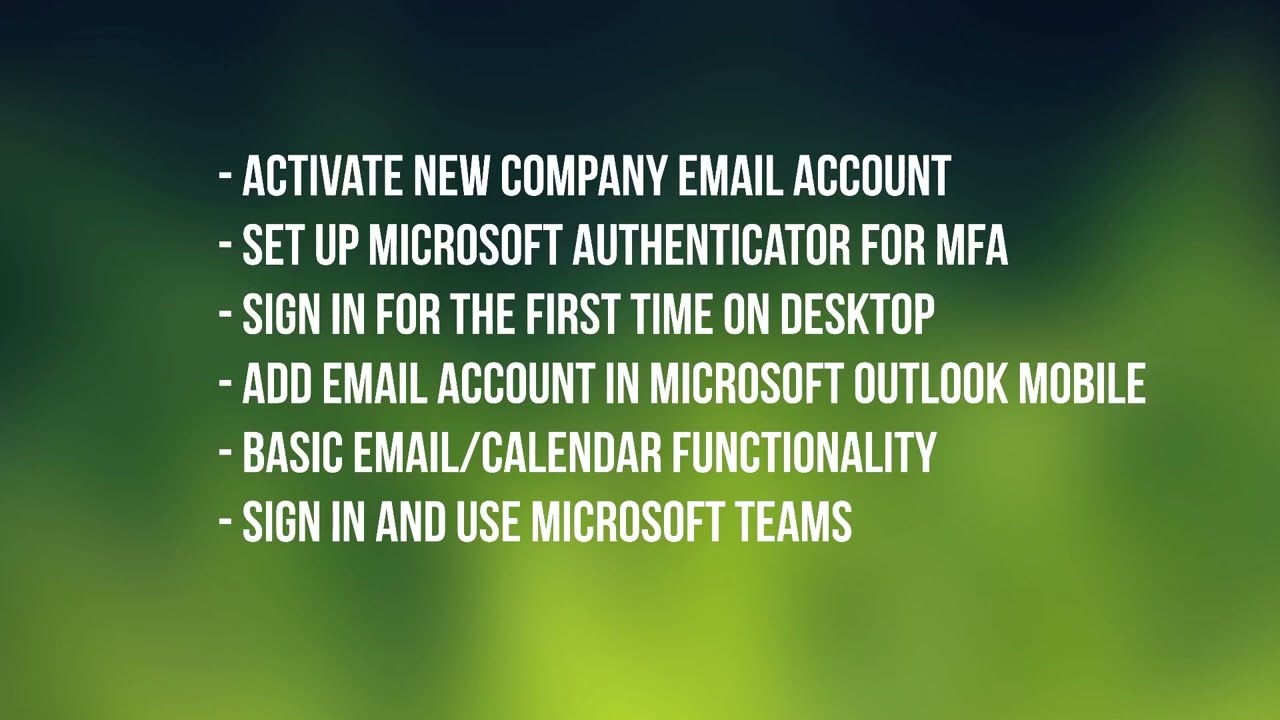
New to HPCH? This video walks through activating your email account and installing Outlook, Teams, and Authenticator on your phone.
Watch the setup video
The Universal Fix: Reboot
A restart clears temporary glitches that build up while a device is running. This alone resolves the majority of tech issues.
- Computer — Restart from the Start menu. Closing the lid only puts it to sleep, which doesn’t clear the issue.
- iPhone — Press and quickly release the Volume Up button, then Volume Down, then press and hold the Side button until the Apple logo appears. This works even if the screen is frozen.
- iPad (no Home button) — Same as iPhone: Volume Up, Volume Down, then hold the Top button until you see the Apple logo.
- iPad (with Home button) — Hold the Home button and the Top button together until the Apple logo appears.
- Android phone / tablet — Hold the Power button for 10–15 seconds until it restarts. On Samsung devices, hold Power + Volume Down together.
- Printer — Turn off, unplug from power for 30 seconds, then plug back in. The pause lets the printer fully reset its memory.
Internet Not Working
- Check other devices first. If nothing on campus can connect, the issue is network-wide — IT is likely already aware.
- Forget and rejoin the network. Go to your WiFi settings, forget
HPCH-Staff, then reconnect. This forces your device to get a fresh connection. - Restart your device. A reboot resets your network adapter, which often fixes stubborn connection drops.
- Try a different location. If you’re in a far corner of a building, you may be out of range of the nearest access point.
Can't Print
- Check the basics. Make sure the printer is on, has paper, and doesn’t show an error light.
- Verify your WiFi network. Printers are only reachable from
HPCH-Staff. If you’re onHPCH-Guestor your personal hotspot, your computer can’t see the printer. - Restart both devices. Restart the printer and your computer — this clears stale print jobs and resets the connection between them.
- Try a different app. Print from something simple like Notepad or a web page. If that works, the issue is specific to the original application, not the printer itself.
Email Not Working
- Check your internet. Email needs a network connection — if WiFi is down, start with the Internet steps above.
- Try Outlook on the web. Go to outlook.office.com in a browser. If the web version works, the problem is with the Outlook app on your device, not your account.
- Restart the Outlook app. Close it fully and reopen. On a phone, swipe the app away from the recent apps list to make sure it actually closes.
- Check your password. If you recently changed your Microsoft password, you may need to sign out and back in to the Outlook app with the new one.
Computer Running Slow
- Restart. If your computer has been on for days, a reboot clears memory and background processes that pile up over time.
- Close unused apps. Each open application uses memory. If you have dozens of browser tabs or programs open, try closing what you don’t need.
- Check for updates. Windows updates sometimes run in the background and can slow things down temporarily. Let them finish, then restart.
Locked Out of Your Account
- Check Caps Lock. It’s the most common cause of “wrong password” errors.
- Windows PIN not working? If your PIN is rejected or you’ve forgotten it, click Sign-in options on the login screen and choose the password option (key icon) instead. Your Microsoft password will still work even when your PIN doesn’t.
- Try Outlook on the web. Go to outlook.office.com to confirm whether your password is actually wrong or just not working in one app.
- Reset your password. Visit mysignins.microsoft.com and use “Forgot password.” You’ll need access to your recovery method (phone or personal email).
- Contact IT if you’re fully locked out. We can reset your password and get you back in.
Still Need Help?
Submit a ticket through the Spiceworks Help Desk . This is the fastest way to get help — tickets are tracked, prioritized, and won’t get lost in an inbox.
If you can’t reach the help desk (no internet access), contact Tyson Clugy | IT Director directly at 806-513-1155 or tyson.clugy@hpch.org .
When submitting a ticket, it helps to include:
- What you were trying to do
- What happened instead (error messages, if any)
- What you’ve already tried